Customize (or Reset) Notification Emails
TourTheSchool notification emails
TourTheSchool automatically sends several emails:
- To you, when a family signs up for a tour
- A confirmation to the family when they sign up for a tour
- A reminder to the family one day before the tour
- A reminder to the family an hour before the tour
- An email to new users when you add them as an admin user to your TourTheSchool account
All of these emails are set up and ready to go as soon as you sign up for a TourTheSchool account. You don’t have to do anything. However, if you would like to customize your notification emails, below are instructions on how.
Dashboard page
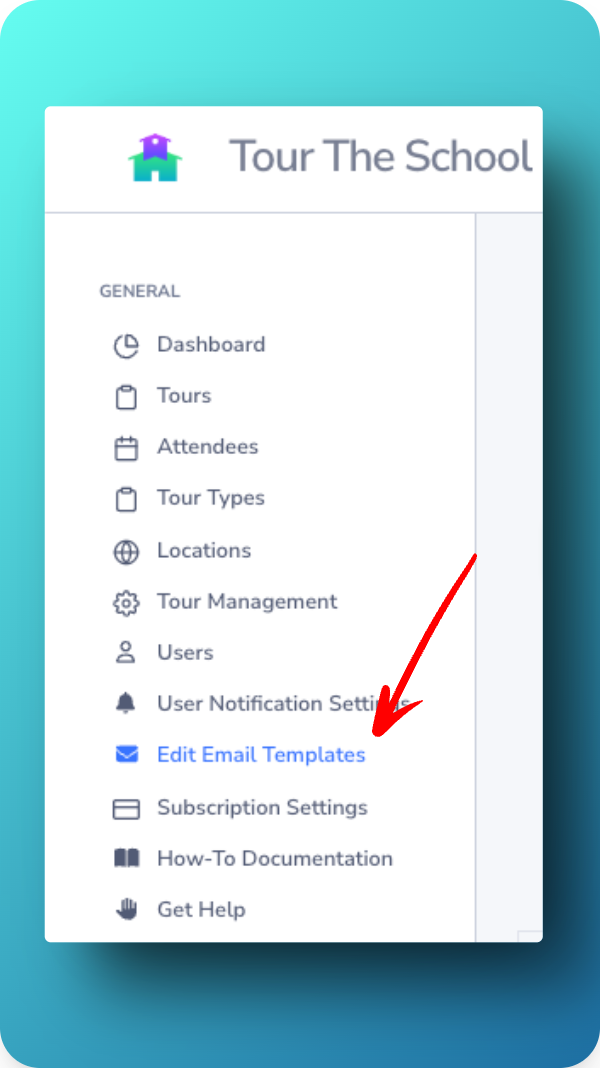
The email notifications can be edited in the “Edit Email Templates” page in your TourTheSchool dashboard:
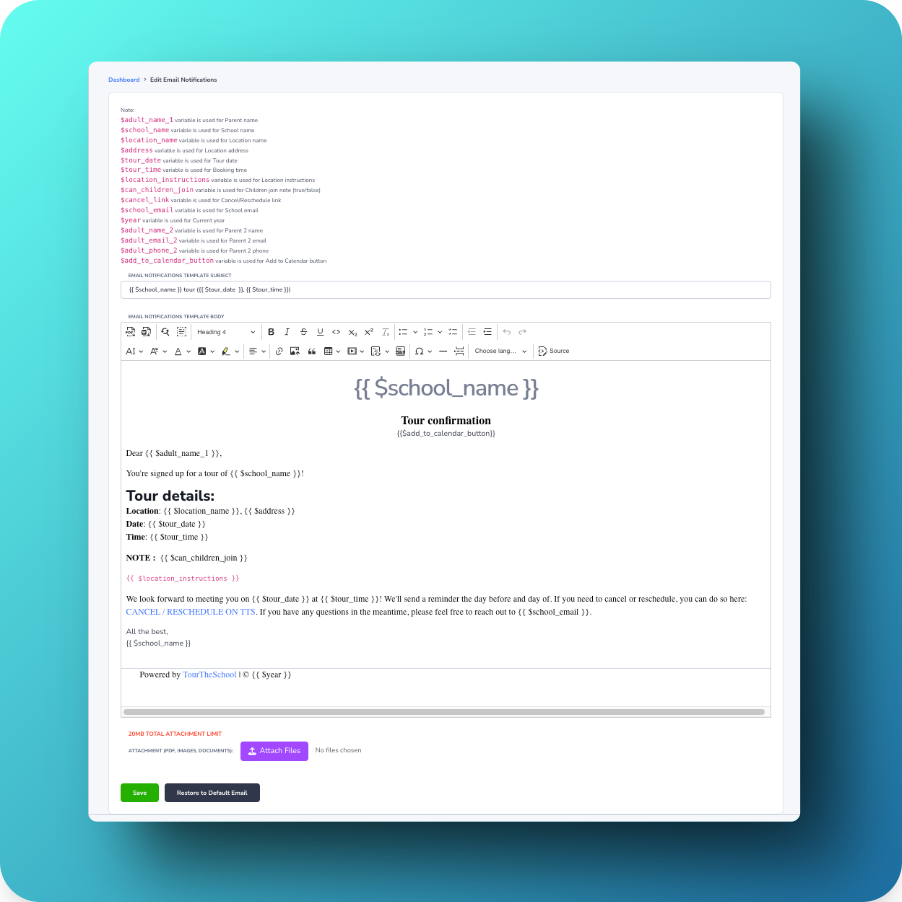
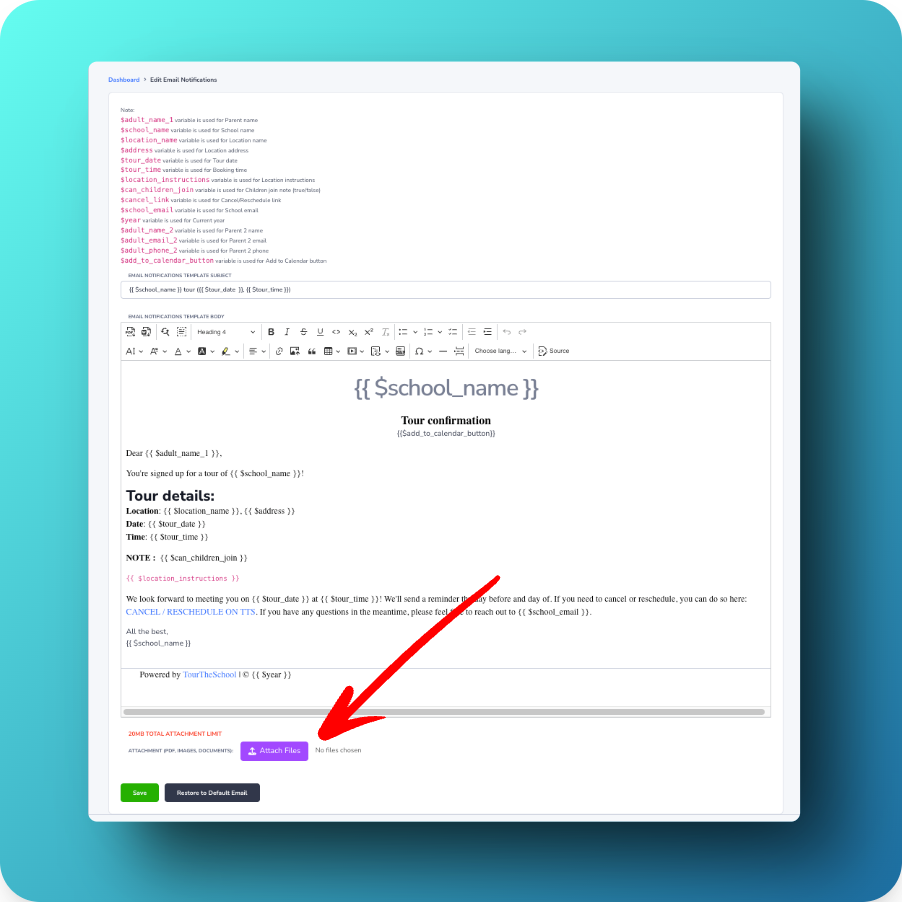
On that page, simply select the email you want to edit then revise the email however you like. Above each email is a key explaining all the shortcodes you can insert.
Email attachments
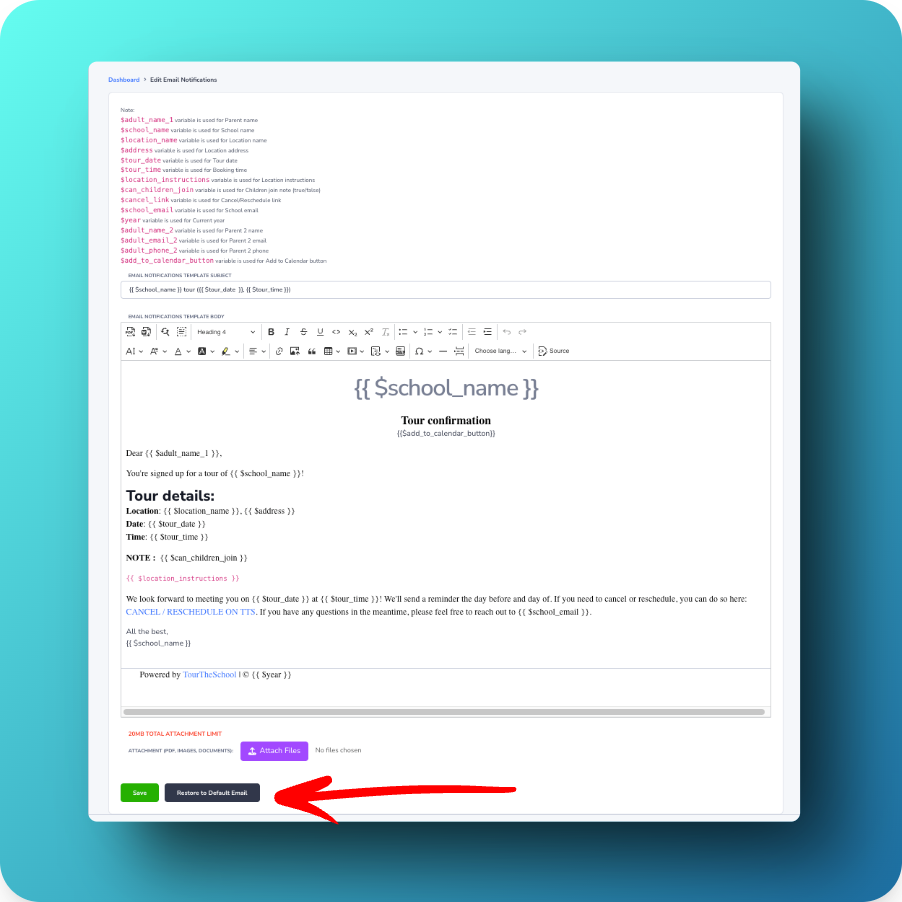
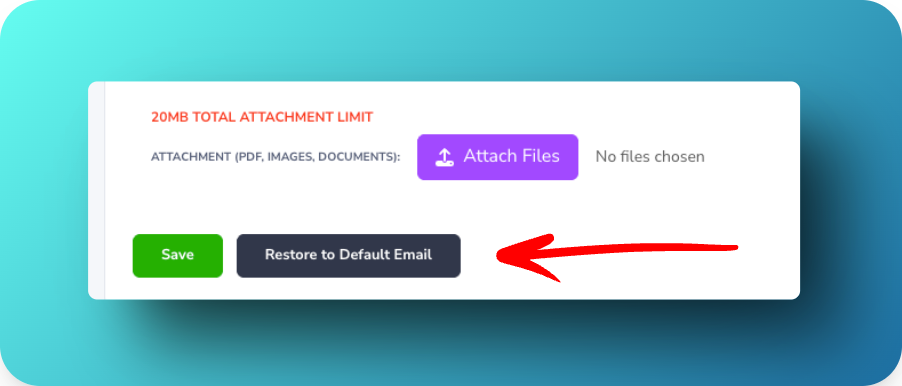
You can include attachments with any of the email confirmations. The option appears near the bottom of the page for the email you want it attached to:
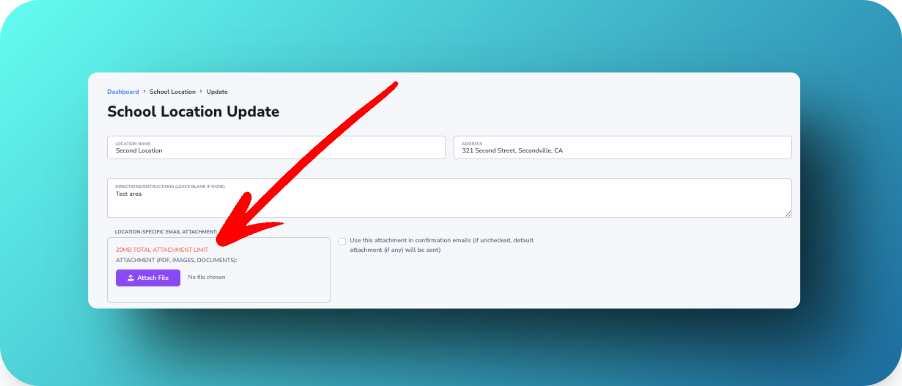
If you have multiple locations, and you want a location to have its own specific attachment, go to the Locations page in your dashboard, click on the location, and you’ll see the option to add a location-specific attachment:
No automatic updates to email templates
TourTheSchool cannot make changes to your email notifications. So if TourTheSchool updates the default emails or adds new features to the emails, you will not see those changes unless and until you actively click to restore the email to TourTheSchool’s default. We’ve set it up this way so that if you do customize your emails or add attachments, you don’t unexpectedly lose your changes simply because we push out an update.
Restore to default
If you need to reset an email (or update it to incorporate updates from TourTheSchool), just go the email and click the “Restore to Default Email” button at the bottom: